Accurate and complete documentation is the foundation of efficient claims management. Missing documents, unclear port associations, or manual verification can slow down processing, introduce errors, and create administrative overhead. Our new document detection feature directly addresses these pain points by automating document identification and association within your claims workflow. It provides instant visibility into what you have, highlights what you're missing, and ensures every document is correctly linked to the right port call—saving you time and reducing risk.
On the right side of the claim screen, there is a new "documents" tab. Drag and drop or click on the "upload document" button to read a document (can include multiple in one file) or a batch of documents. In this tab you will see a breakdown of the number of documents identified (number in the grey box on the left) and the ports they are associated with.
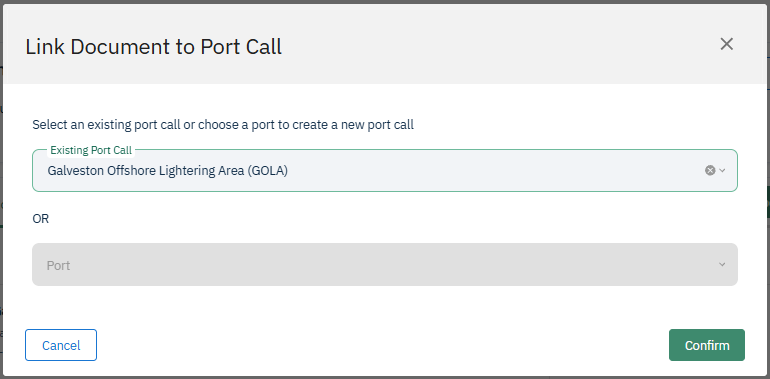
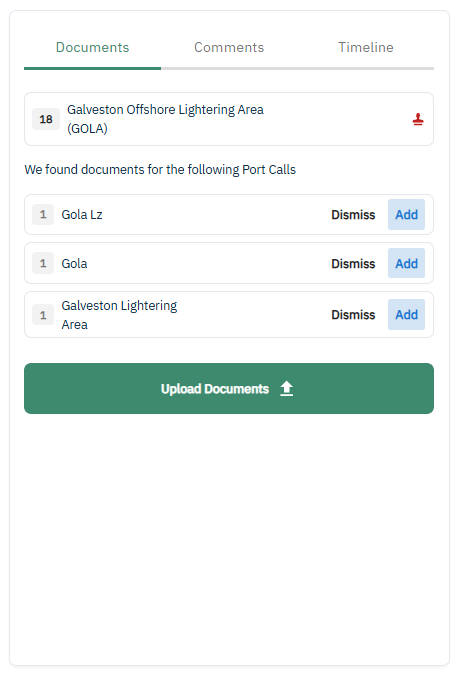 The program will automatically read the portcall associated with all of the documents. If any do not match an existing portcall from the claim, they will be listed under the comment "we found documents for the following port calls". Click on "dismiss" to remove the document or "add" to assign it to a portcall. You can pick an existing portcall in the claim or assign it to a new port within the Voyager master data. Assigning it to a new port will automatically create a new portcall within the claim.
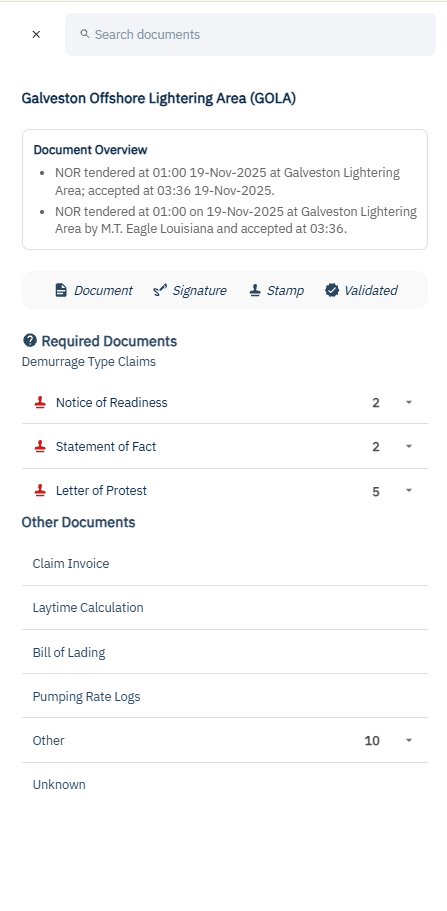
On the main tab, you can also see if any of the ports are missing documents, signatures, or stamps based on the following icons. If nothing is missing, you will receive a "validated" icon.

Note: running the document detection does not automatically run the SOF parser and validate the document. For more details on the documents, click on the port. This will pop up a full menu with a document overview and a breakdown of all required and other documents. Any missing fields will show an icon on the left of the category. You can search for specific required documents by name in the search bar at the top of the screen.
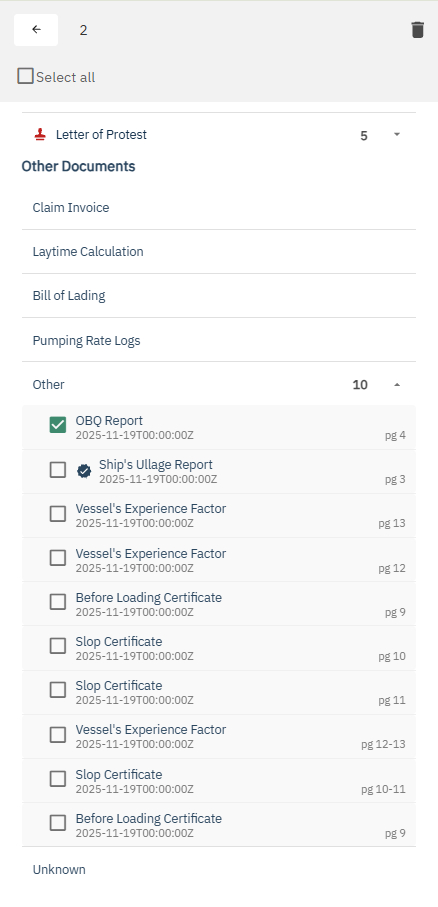
Click on the arrow on the left of the document category to see all of the details. These include a summarized document name, the date on the document, the page of the document, and what specifics (if any) are missing.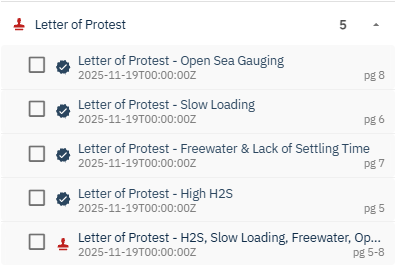
To delete a document, click the box on the left of the document line. An option to select all and a trash can icon will appear at the top of the menu.