
Feature Area: Claims Manager — Document Processing
Impact: All users uploading and organizing claim documents (SOFs, invoices, bills of lading, NORs, etc.), including external counterparties submitting claims
Video walkthrough - Document Detection and Bookmarked SOFs
Step-by-step guide:
Overview
Uploading claim documents has always meant manually sorting a many PDFs — splitting out each Statement of Fact, naming files, and working out which port call or vessel each one belongs to. This release automates that: Voyager detects, separates, and parses SOFs as soon as they're uploaded, and gives every claim a dedicated space to review, organize, and act on what it finds. The external claim submission form now takes a single combined "files" upload instead of separate fields per document type — counterparties just drop everything in (SOF, invoice, NOR, and so on) and detection handles the rest.
No more need to upload the same document batch to different port calls and filter for the relevant SOF pages. Simply add them to the documents, and the system will find the SOFs and attach them to the port calls for you. And, parsing speed may improve as event parsing only needs to occur specifically for pages identified as an SOF.
If multiple SOFs for the same port call exist, it will properly add multiple SOFs to the port call and assign the first as primary. All SOFs must still be validated. If the same event with the same time is found on multiple SOFs, then the port call calculation and the statement will consolidate these into 1 event — but this process will allow you to quickly compare the events across SOFs.
How It Works
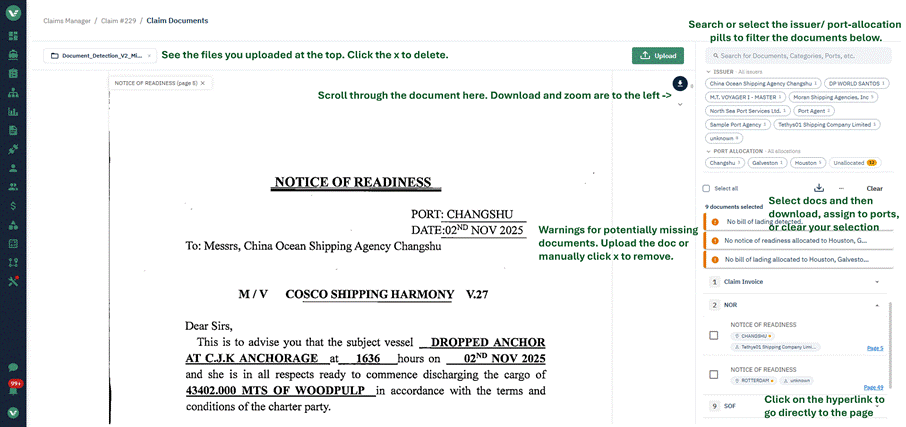
The redesigned Document Details workspace: search and filter by issuer or port, review missing-document warnings, select and download in bulk, and jump straight to any page.
- Upload up to 5 PDFs (charter party, invoices, SOFs, and more) from the claim's Documents tab, the "Upload documents" button in the center of the claim screen, or via the external submission form's single combined upload field. Document detection can work with a single PDF containing several merged documents, or many separate PDFs — only PDFs go through detection, other file types (e.g. a spreadsheet) still attach as a normal supporting document.
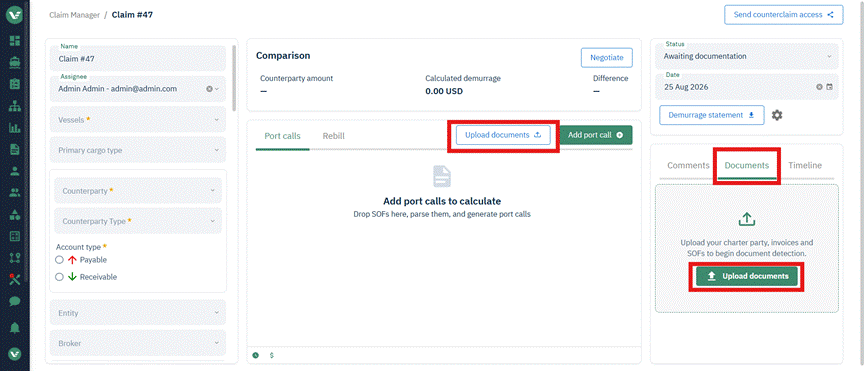
Upload directly from the port calls view or the Documents tab.
- While Voyager works, the Documents tab shows live progress (reading pages, classifying documents, detecting SOFs) so you're never staring at a blank screen; a small indicator on the claim itself shows detection is in progress. Feel free to leave the page — it continues working in the background.
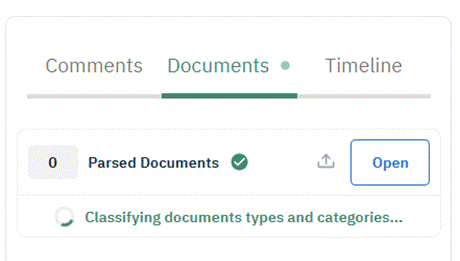
Live status while detection and classification run.
- Once processing completes, detected SOFs that aren't yet linked to a port call appear as a list of selectable cards. Where Voyager could identify the port, it's pre-filled as a suggestion; where it couldn't, the field is left for you to fill in.
- Ports and terminals must be added to master data before parsing for Voyager to auto-allocate to them.
- Select one or more unallocated SOFs and either create a new port call from them or link them to an existing one — including combining multiple SOFs from the same upload into a single port call, so you don't need to create several port calls one at a time and pick out the relevant events for each.
- Every generated document lands in a new two-pane Document Details screen: the PDF viewer on one side, your documents grouped by category (SOF, Bill of Lading, Claim Invoice, NOR, LOP, and more) on the other. Get there by clicking "Open" on the claim's Documents tab.
- Click a "Page N" reference to jump straight to that page in the viewer, briefly highlighted.
- Filter the list by source batch, issuer, or port call, or search by document or port/terminal name (search matches on the label used in the system — e.g. "SF" finds Statements of Fact, but "Statement of Fact" spelled out does not).
- Download a single document, or select several for a bulk download — you'll get a confirmation step to review your selection and set the zip file's name before it downloads.
- From the document list's row menu (⋯), create or link a port call directly, the same as from the unallocated-SOF cards.
- Delete an entire uploaded batch, with confirmation, if it was added by mistake.
- A warnings section flags likely gaps — no invoice detected, no bill of lading, no NOR — as advisory prompts; individual warnings can be dismissed so an analyst isn't repeatedly reminded of the same thing. Warnings re-run on every new upload.
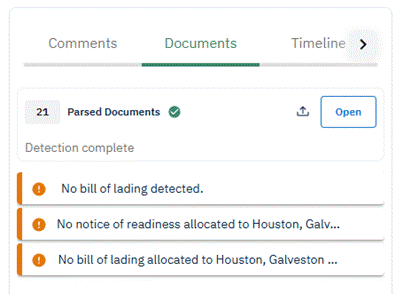
A running count of parsed documents and any warnings, right on the claim.
- Voyager also checks your claim's own port, vessel, and terminal data first, before falling back to the general master-data lookup, when auto-filling detected values — so a detected value is less likely to attach to the wrong port call or vessel.
- The PDF viewer includes zoom controls, and you can download the original uploaded batch directly from a SOF's own page as well as from the Document Details screen.
Getting Started
- Open a claim (or the external submission form) and upload your documents — one combined files field, up to 5 PDFs at a time.
- Wait for detection and parsing to finish; watch the live progress state in the Documents tab.
- Review the unallocated SOFs list — create or link a port call for each (or select several at once if they belong together).
- Open the Document Details screen from the "All Documents" card to review, filter, assign, or download what was found, and check the warnings section for likely missing documents.
- Work your claim as normal, with the SOFs already attached and parsed.
Planned Additions
- The existing signed/stamped indicator is temporarily unavailable but will return next month.
- Claim validity warnings currently assess all documents on the claim rather than per port call. A future iteration will cross-check contractual requirements and more precisely flag what's missing for each port call.
- A future release will use the parsed documents to propose updates to cargoes and vessels when they're missing from the claim.
- Integration with email, external comments, and VMS.
- Improved document revision and tracking, including invoice documents.
- Availability on non-demurrage claims.