
Giving Claim Access
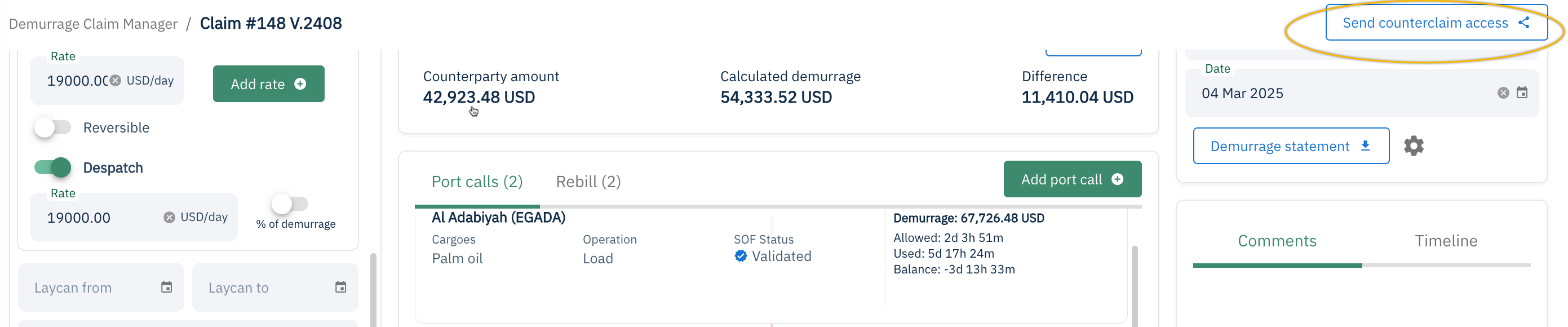
- Click "Send counterclaim access" on the top right of the claims window.
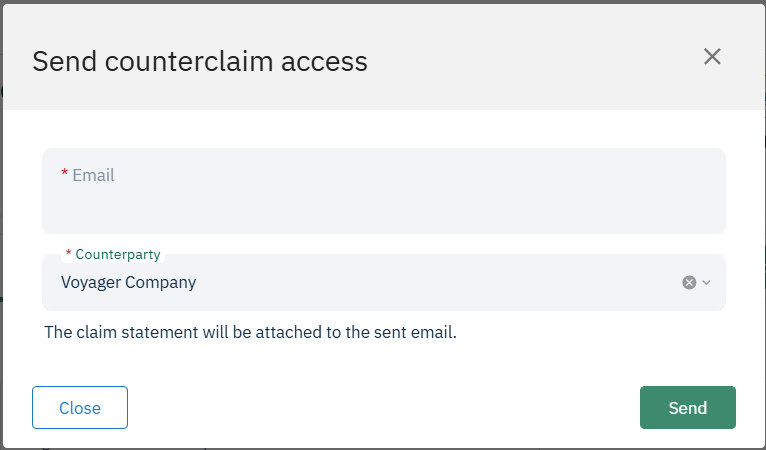
- Select the counterparty and enter the email address of the person/company whom you want to send the counterclaim access.
- The counterparty whom you sent the counterclaim access should receive an email with the demurrage statement attached and a link for them to see the claim. In the claim window, they'll have the option to accept or reject the items stated in the calculation.
The Negotiation Process
Once the counterparty is done reviewing the items, you'll be notified via email. You can then go back to the claim and click the "Negotiate" button near the top middle of the claim screen. In the next window, click the "Negotiation" tab.


The "Negotiation" tab will show the items that were accepted and/or rejected by the counterparty in the open negotiation section on the left. 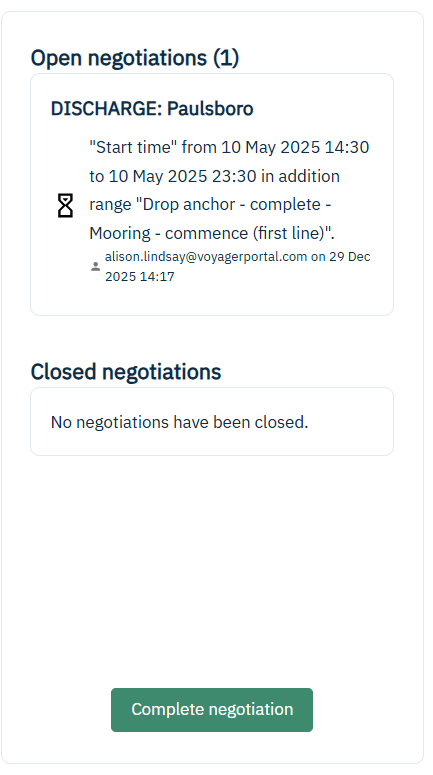
This is also where you can make a dispute on the items that were rejected by the counterparty. In this example, you can see the addition was rejected with a proposed change in the "open negotiations" section. The counterparty rejected this, indicated by a red X. You can accept or reject their proposal by using the check and X in the grey box.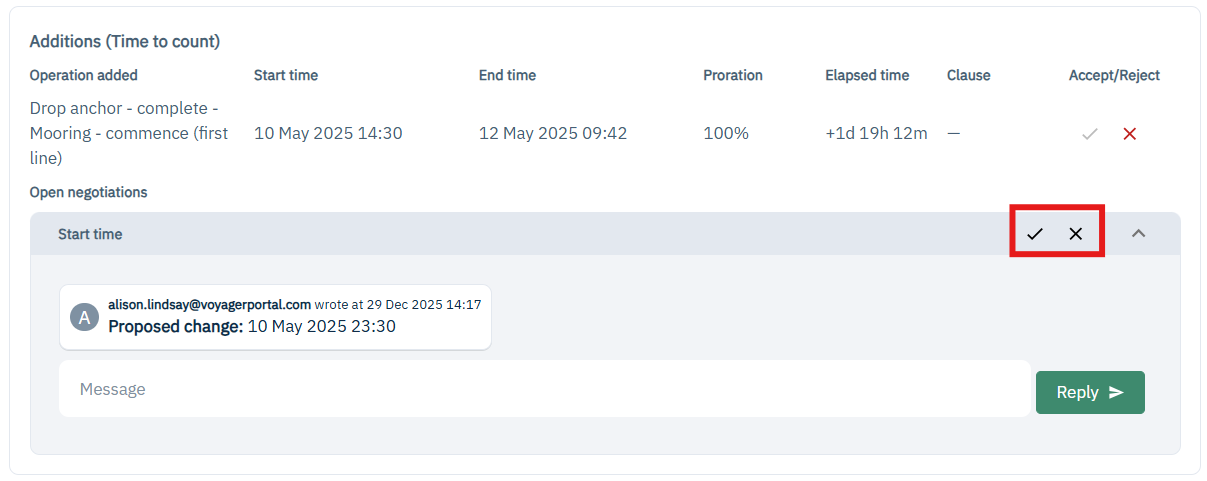
Once every item has been agreed by both parties, you can now click "Complete negotiation". the status of the claim will then change to "Amount settled".